Inviting Users
How To Invite a New User
To invite a new user to your CrowdConversations account:
1. First you will need to navigate to your account icon in the top right of the page and click on Account in the drop-down menu.
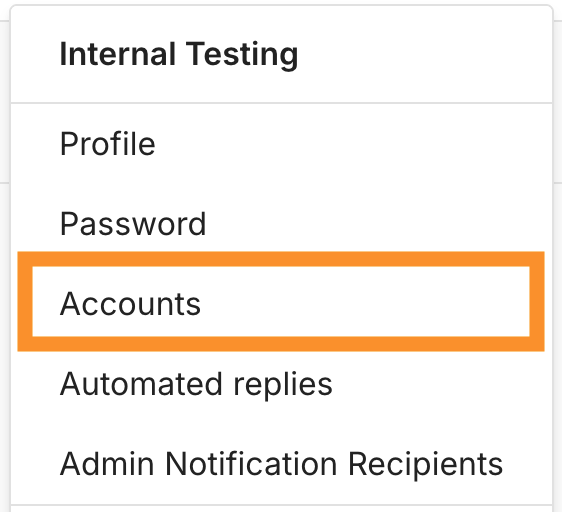
2. This will bring you to a page showing your accounts and you will select the account (you will likely only have one) that you would like to invite users to.
.png)
3. On this page, you will select the button that says Invite A User.
.png)
4. You will now enter the name and email of the user that you would like to add.
.png)
You will select between an Admin or Member role when you add a user.
Description of Roles:
A member role will allow users access to:
- Access the dashboard
- Send and receive messages
- Add contacts and create contact lists
An admin role will allow users that same access but also access to the following:
- Edit the account
- Change the office hours
This is a new feature and enhancements to the area of Roles will be considered in the future.