Text Messages
This will be the page shown upon login to CrowdConversations.
To navigate back to the Text Messages page at any time, you may select the CrowdConversations icon in the top lefthand corner or the Text Messages icon on the lefthand menu.
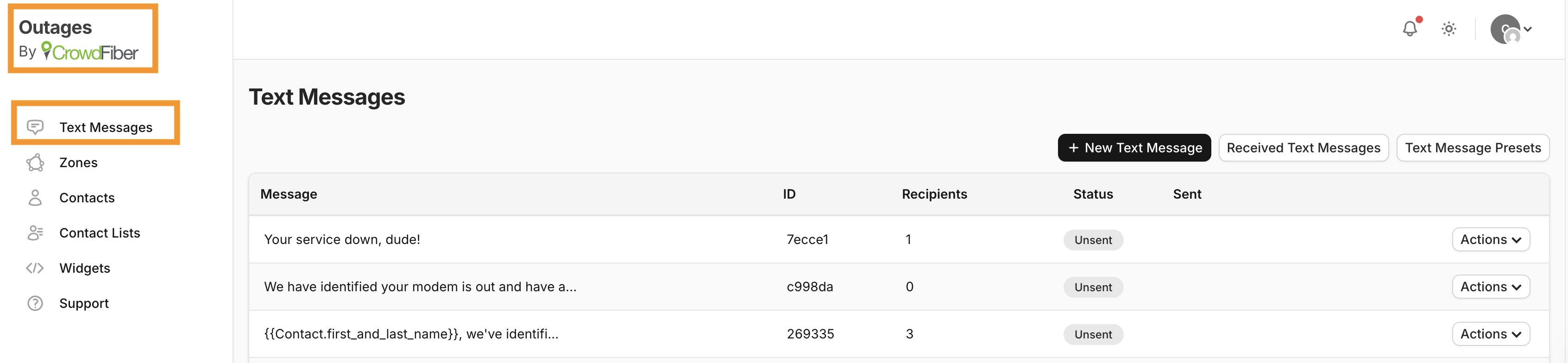
On this page, all previously sent text messages will be displayed and allow for you to view or duplicate those messages.
Additionally, there are options on this page that allow you to send a New Text Message, view Received Text Messages, or set Text Message Presets.
New Text Message
- Single Contact
Allows you to choose a singular contact from a dropdown menu.
-
Multiple Contacts
Allows for you to choose multiple contacts from a dropdown menu when toggled ON.
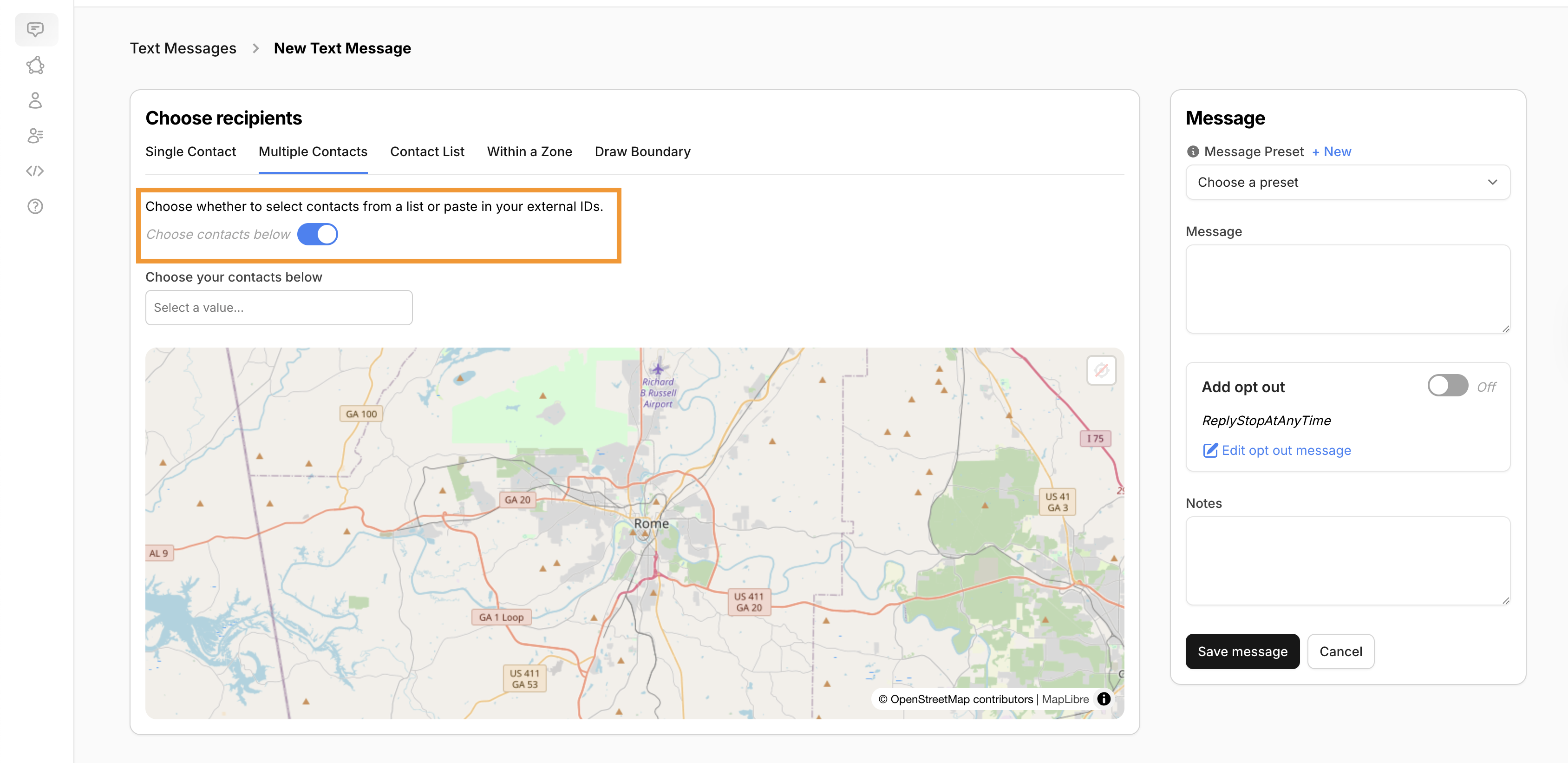
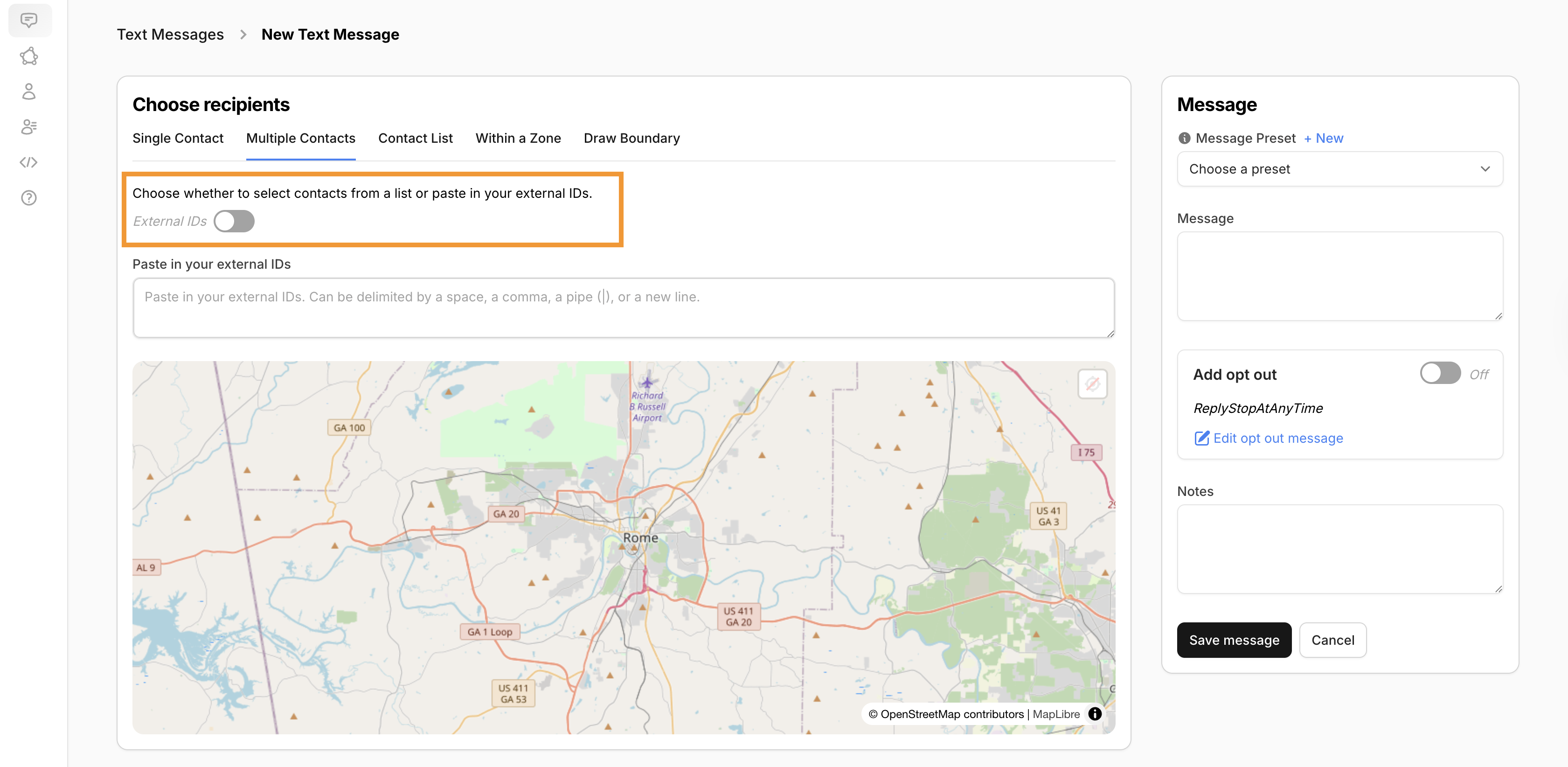
Allows for pasting of external IDs when toggled OFF.
-
These can be delimited by a space, a comma, a pipe (|), or a new line.
-
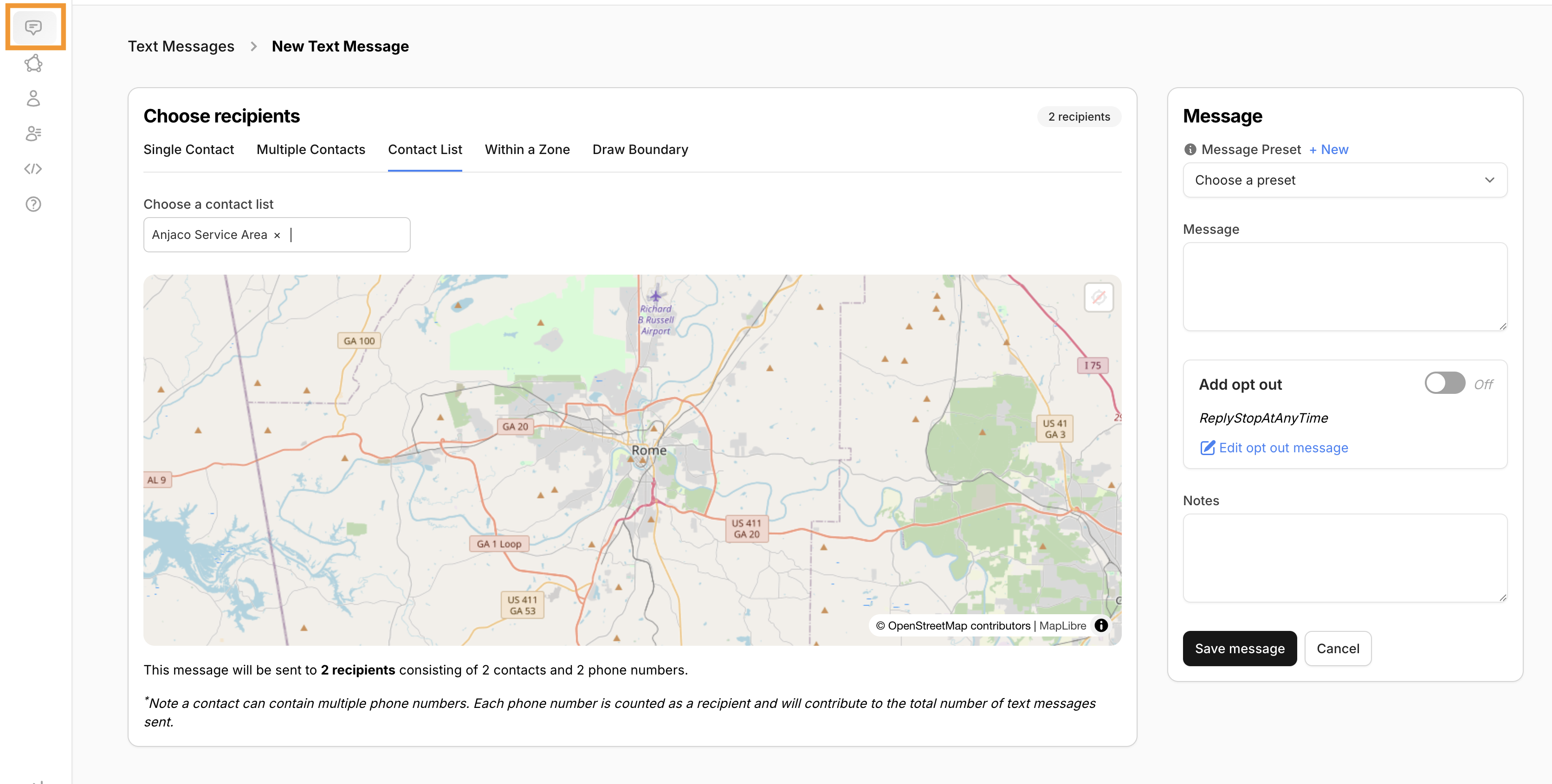
- Contact List
Allows you to choose from a Contact List in a dropdown menu.
-
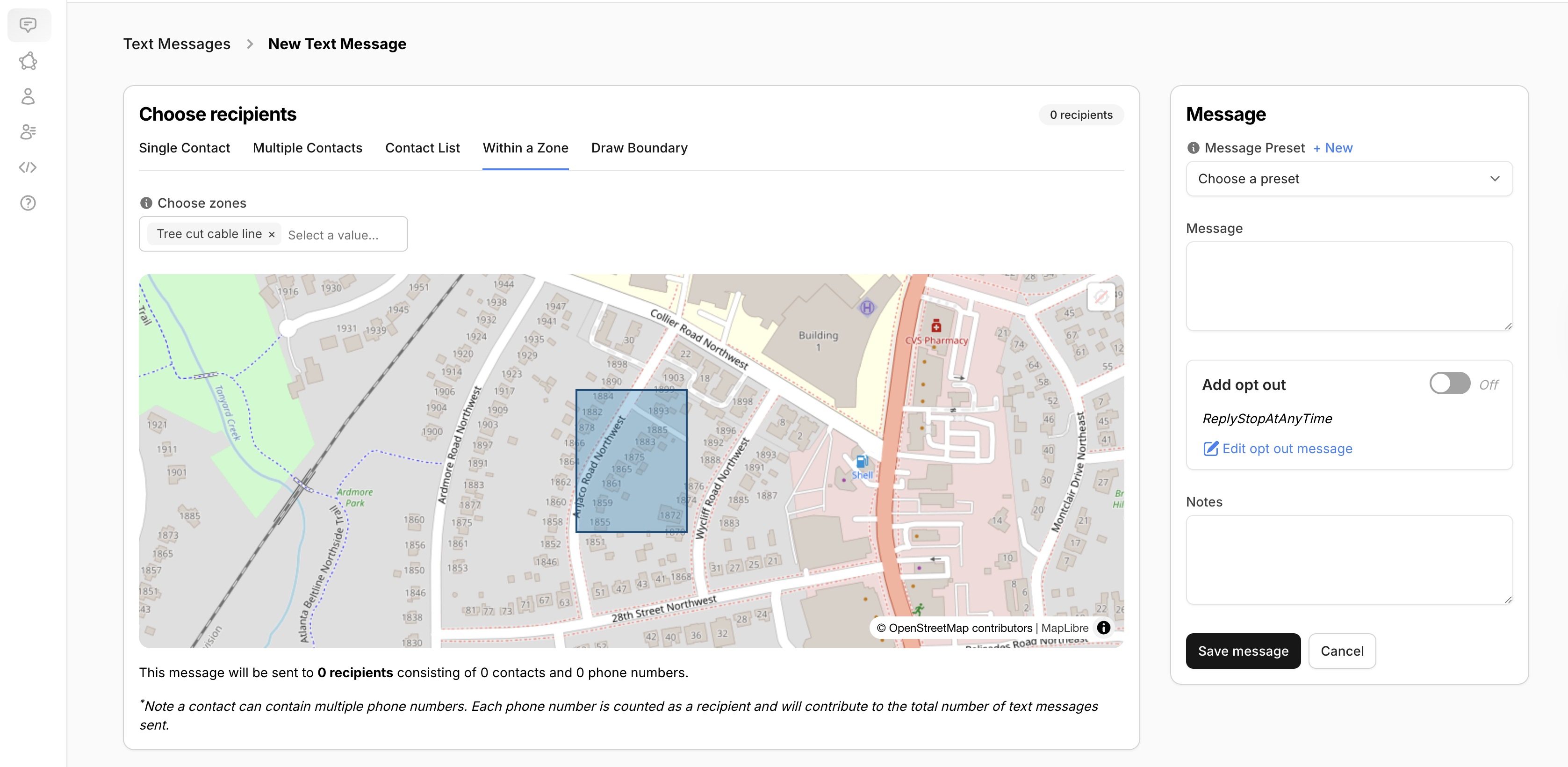
Within a Zone
Allows you to choose a Zone from a list of zones within your account in a dropdown menu.
-
Multiple zones may be chosen using this method!
-
-
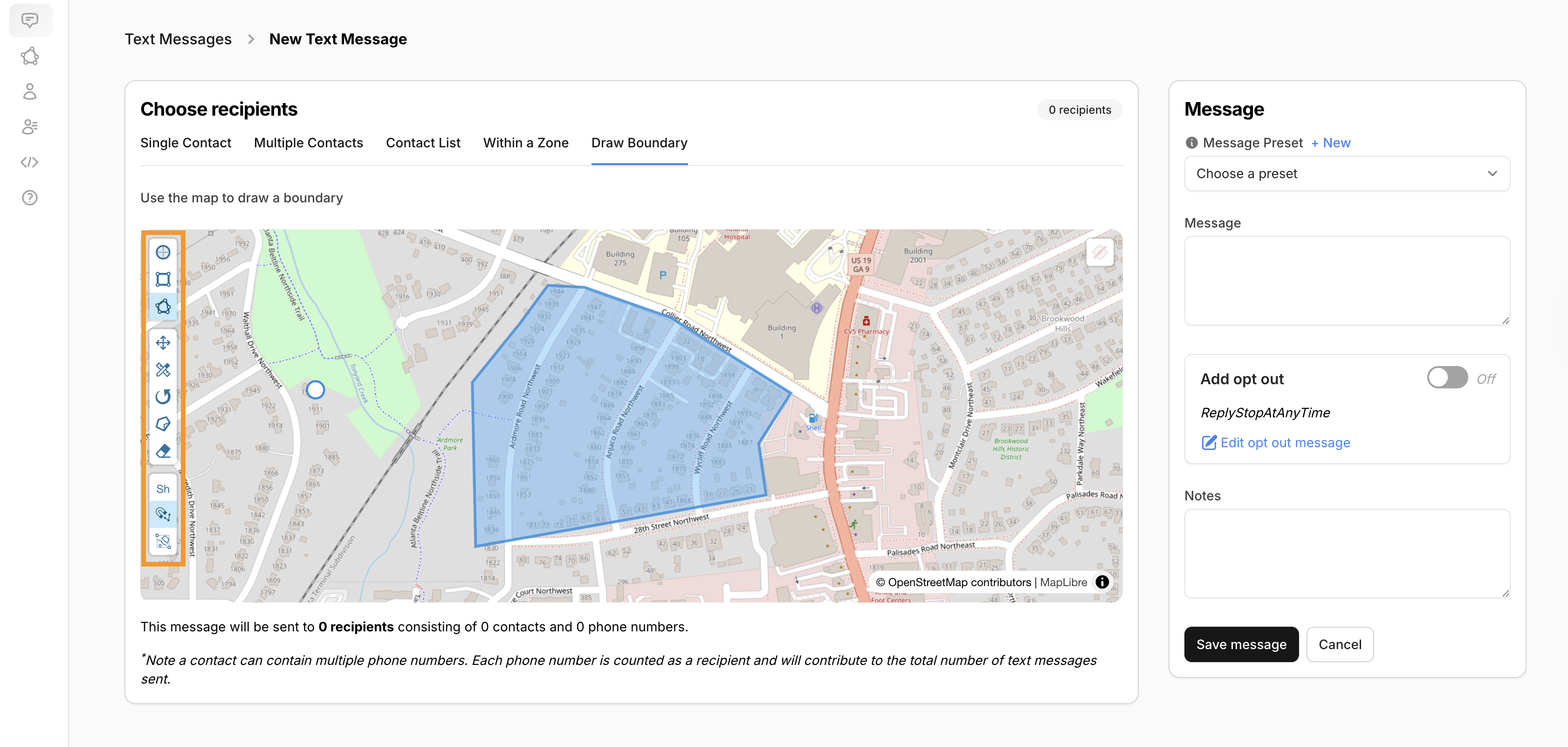
Draw Boundary
Allows you to Draw a Boundary using tools that are displayed within a toolbar on the left side of the map.
-
The tools available allow for multiple and custom shapes, if desired.
-
Text Body & Notes
- Within your text message, the body of the message has a 2 character minimum and a 1600 character maximum.
-
Body encoding will dictate how many message segments that a message is.
- Here is a link with more information regarding segments!
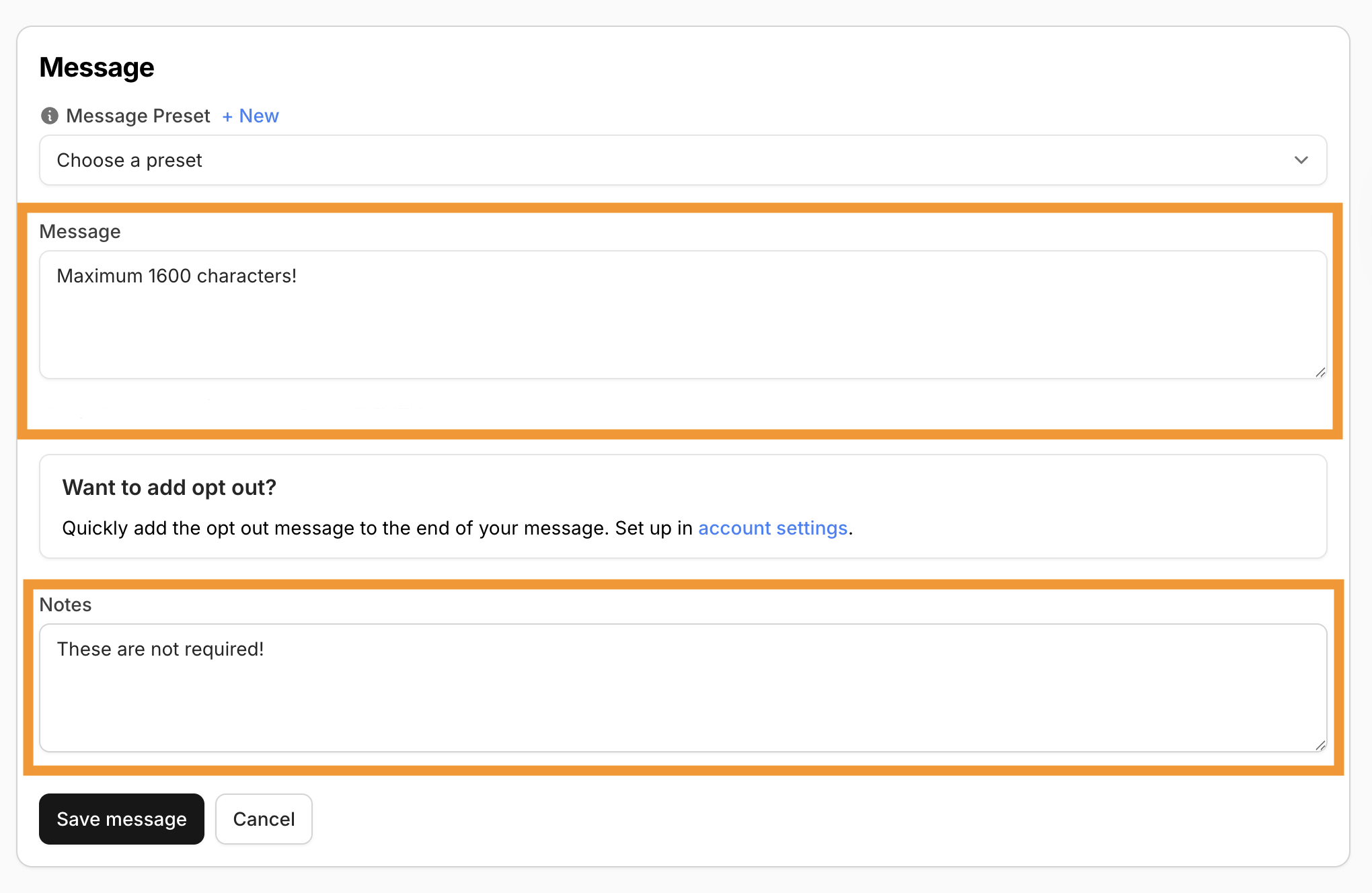
- The Notes field, while useful for important notes, is not a required field.
Add opt out
On each of the options above, a section to Add opt out will also be displayed and can be toggled ON or OFF depending on your preference. The verbiage within this opt out message can be edited by clicking "Edit opt out message" within this section or within your account settings.
Received Text Messages
On this page, all received text messages (reactions to messages included!) will display within a table. Received messages can be viewed individually by clicking View on the message that you would like to see.
Text Message Presets
Text Message Presets can be used to quickly send out messages regarding specific events.
For example, in the event of an outage, there could be an intial outage notification message set such as:
"Hi, {{Contact.first_and_last_name}}. We are seeing outages in your area near {{ Contact.service_address_longform }}. We'll text you with updates or a resolution ASAP."
This would allow you to quickly send out a pre-approved message to your contacts.