Welcome Message
The Welcome Message is a message sent to end users that subscribe to receive messages, when end users sign up through the sign up page, and is the final message received when an end user opts into messaging by texting your CrowdConversations number and creating a new contact. This welcome message also serves as a check of the phone number as you will then be provided with a status message for the phone numbers within the account showing them as either reachable or unreachable.
To Edit or View the Welcome Message
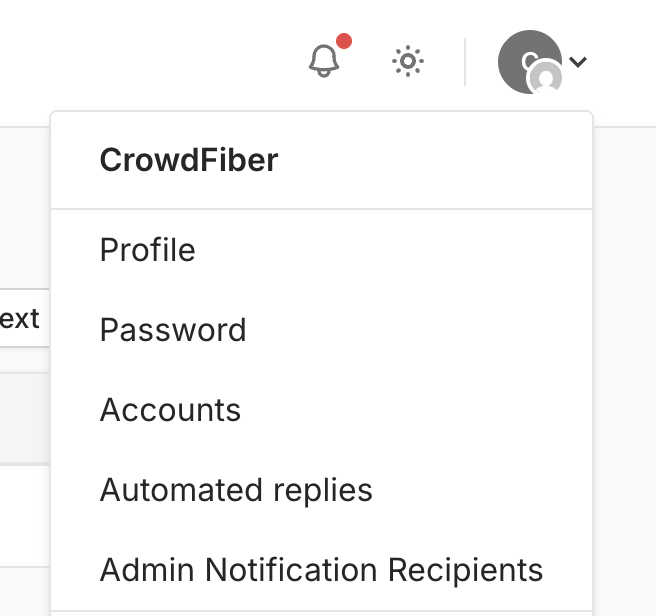
1. Click on the account logo on the top righthand side of the page to display a dropdown menu and select Accounts.
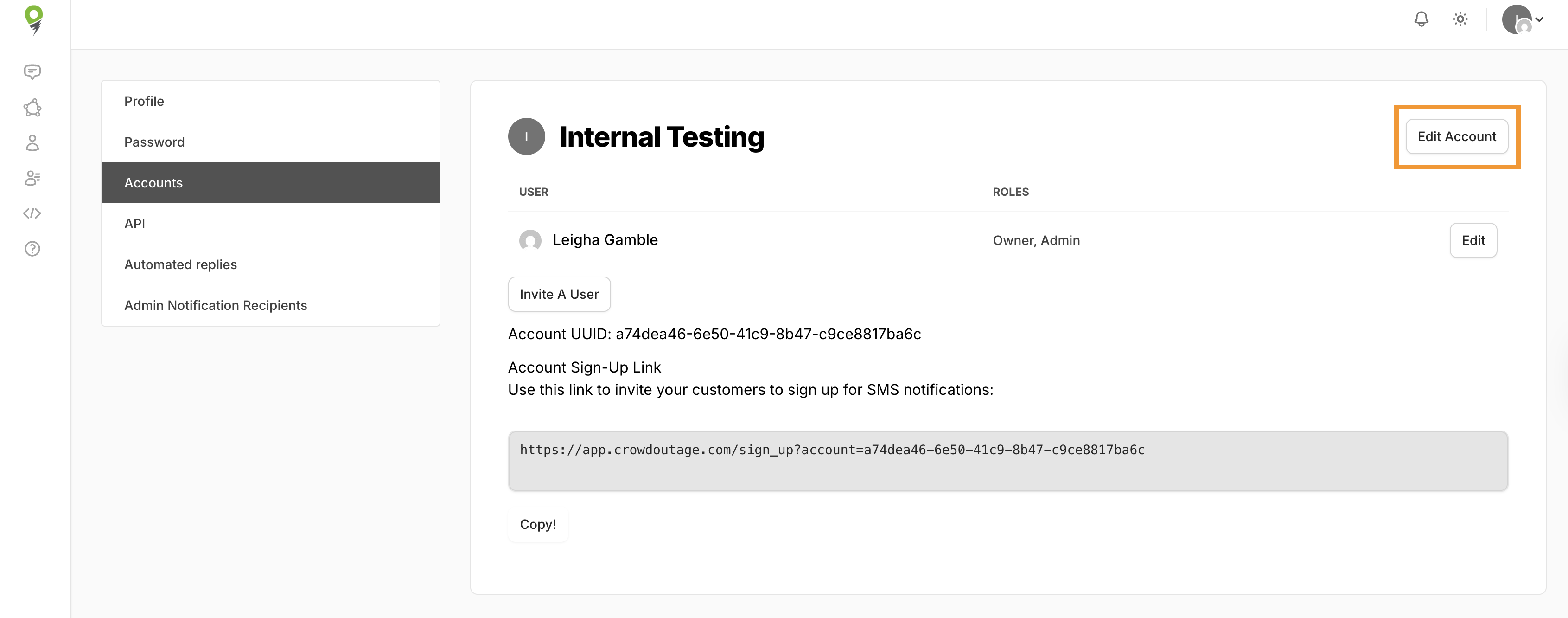
2. This will open an index of all of your accounts. Select the account that you would like to view or edit.
3. The page will display the name of your account and all users, along with their roles, here. Select Edit Account.
4. Scroll to the bottom of the page to see Welcome message.
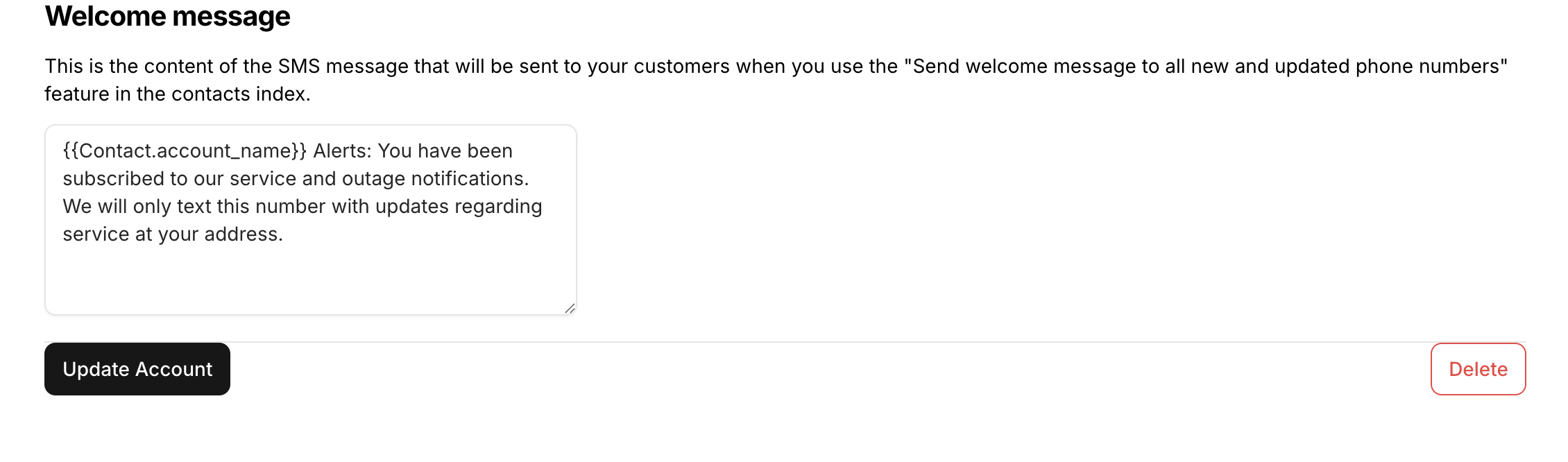
If updating your welcome message, be sure to click Update Account to apply any changes!
Sending the Welcome Message
To trigger welcome messages for new or updated numbers:
1. Navigate to Contacts page and select the More dropdown menu.
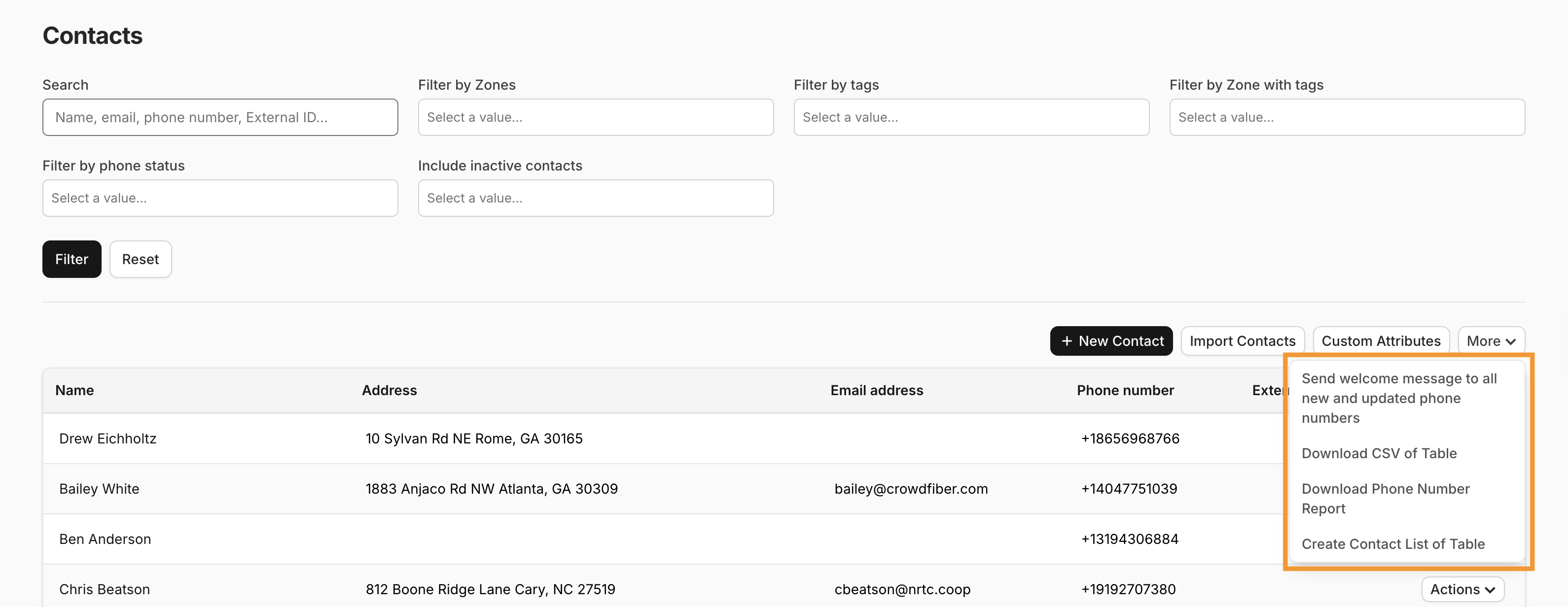
2. Select Send welcome message to all new and updated phone numbers.
- A popup message will display asking to confirm sending the welcome messages. This popup will also display the number of recipients to receive the message.
3. Select Confirm to send the welcome message.