Account settings
Account Settings
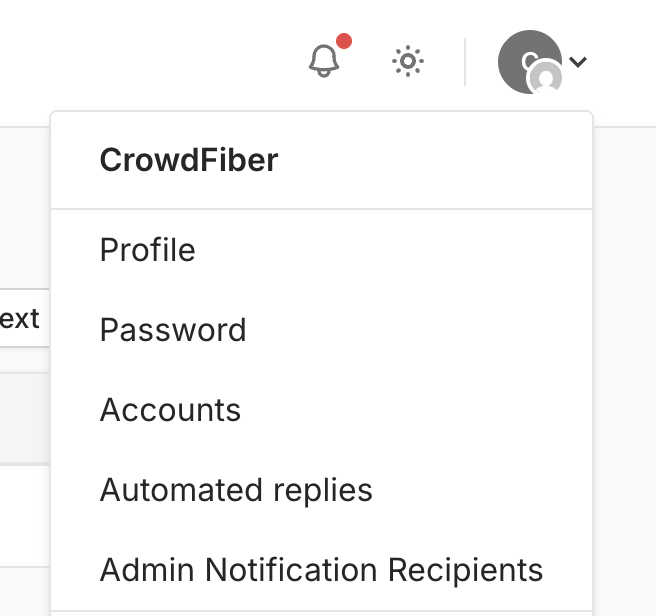
Account settings may be accessed by navigating to the top righthand corner of the screen and will display a dropdown list containing the following options:
- Profile
- Password
- Accounts
- Automated replies
- Admin Notification Recipients
Profile
When navigating to the Profile page, edits may be applied to:
- Full Name
- Phone
- Time Zone
- Color Theme
- Profile icon
After changing any of these fields, click Update to ensure that your changes are saved.
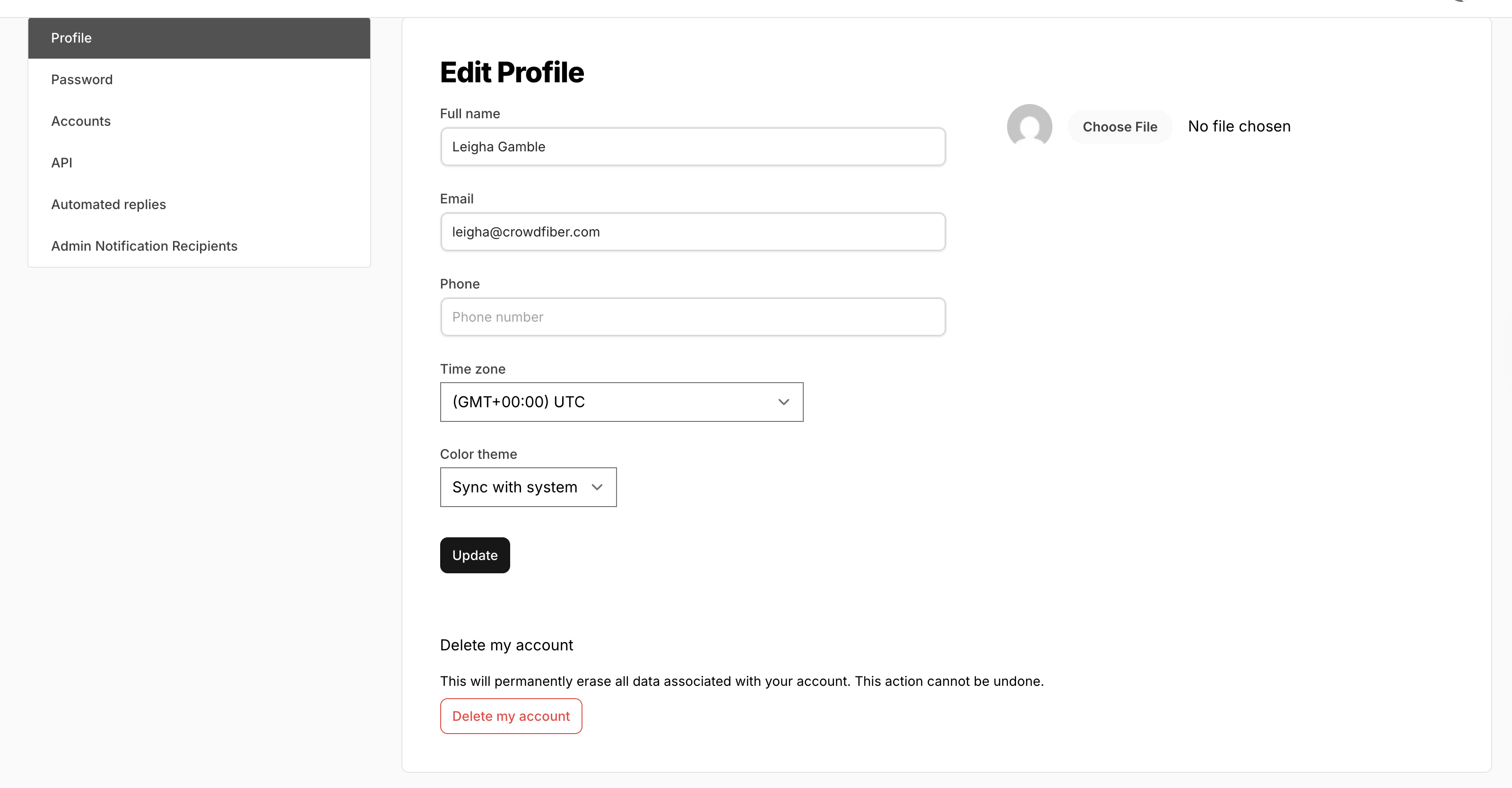
You will also see the option to delete your account within this page.
Password
Here you can update your password and also enable/disable Two-factor Authentication.
Accounts
In the event that you manage multiple accounts, this is where you can switch between those accounts.
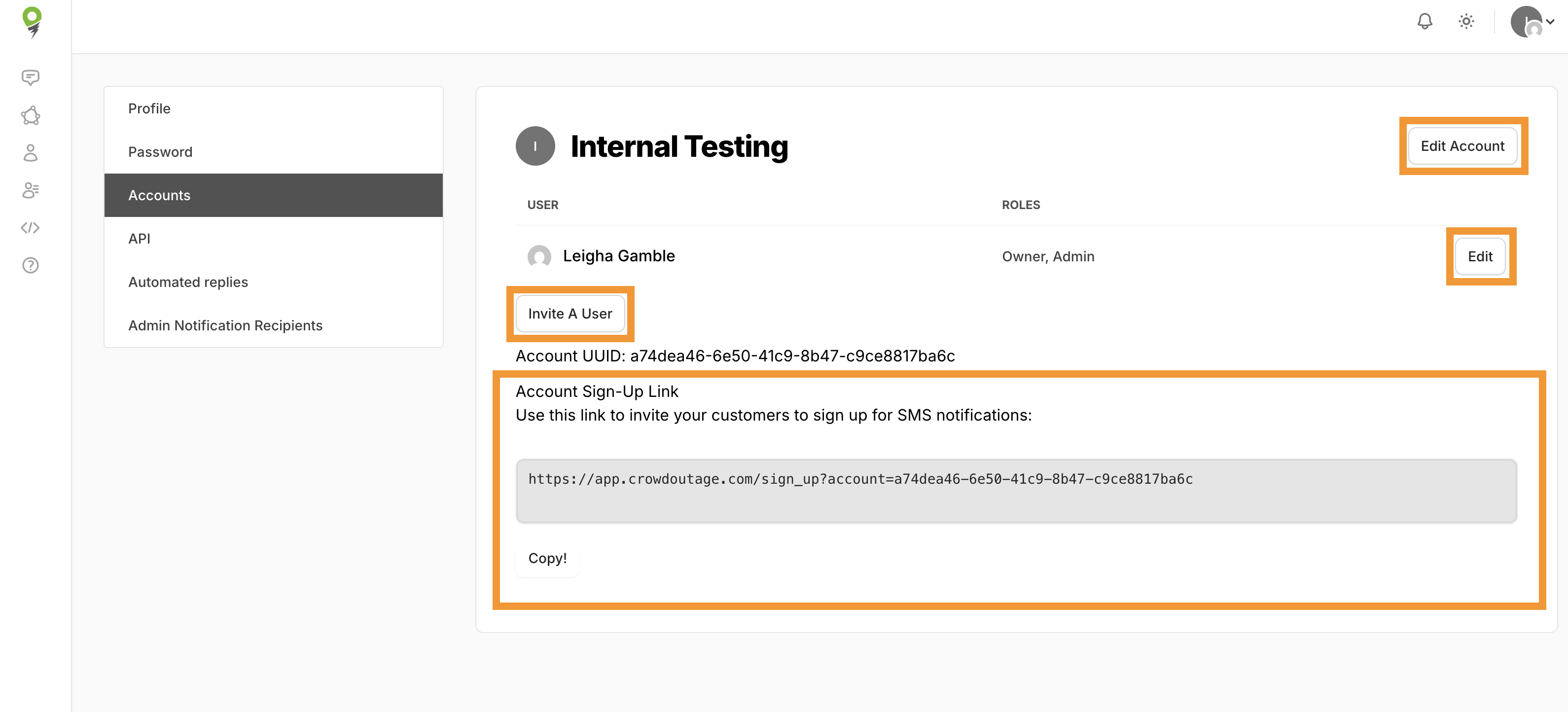
On this page, you can:
- Invite A User
- Edit user roles
- View a link that will invite your customers to sign up for SMS notifications
-
Edit Account Settings such as:
- Account Name
- Time Zone
- Business Hours
- Avatar
.png)
- Map coordinates (these will populate automatically) and Zoom level
- Twilio configuration
- Automatic opt in message body
- Privacy policy URL
- Terms of Service URL
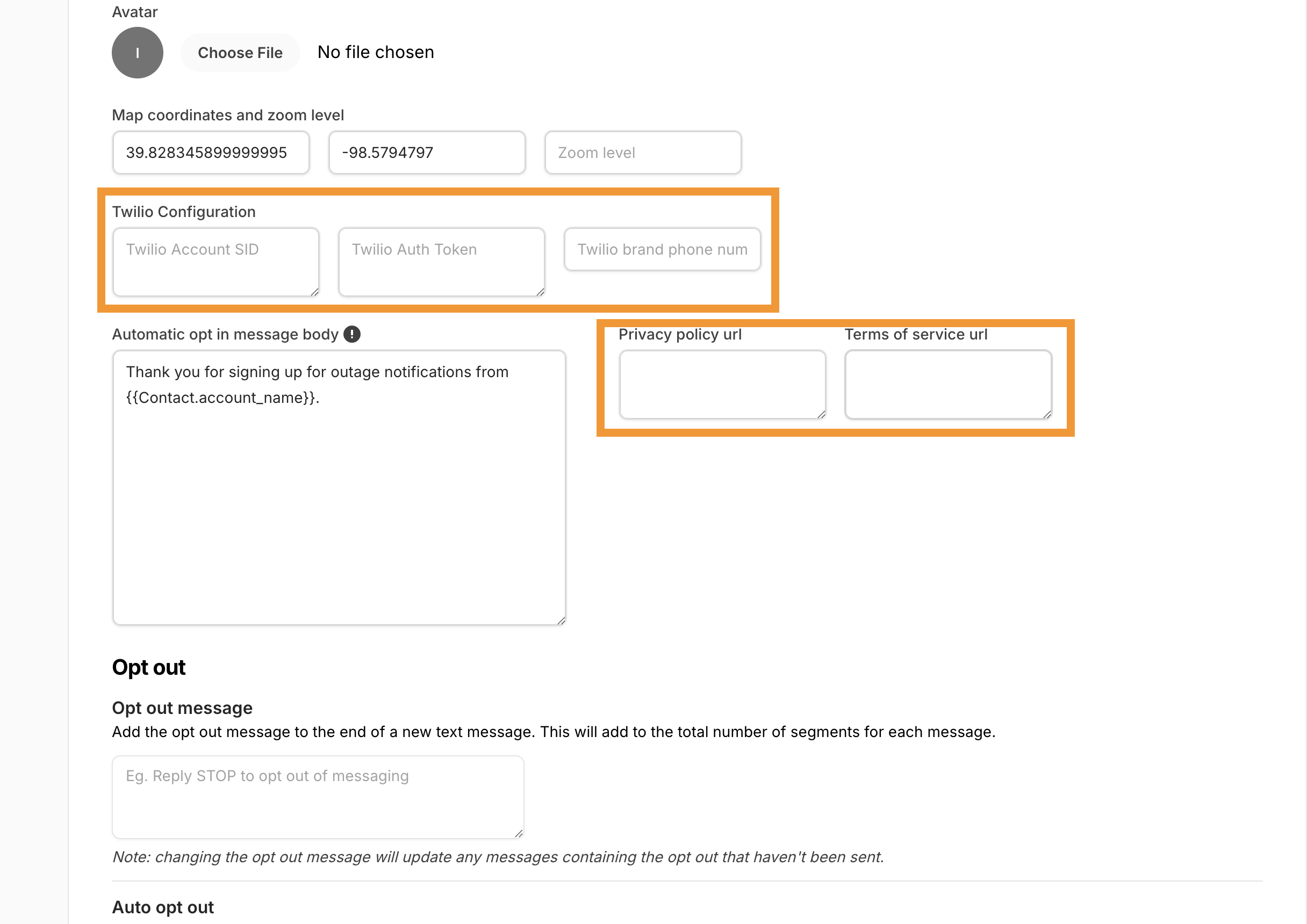
Additionally, this will be where Opt Out messaging may be saved, an Auto opt out setting selected, and your Welcome Message created!
.png)
- Additional resources regarding Opt Out Guidance may be found here.
Automated Replies
The Automated Replies feature offers the ability to create a variety of automated messages such as:
- Reply-now replies
- Keyword replies
- Calendar date(s) replies
- Day and time replies
- Business hour replies
Click here for more infomation and a tutorial on setting up your Automated Replies!
Admin Notification Recipients
This feature allows for designated personnel to receive email notifications for inbound messages.
Click here for more information and a tutorial on setting up your Admin Notification Recipients!